

SMS/SS7 #
No matter what phone or OS you use, SMS is not a protocol that you should have any level of trust in. Aside from the telephone network itself being compromised for years in the aforementioned Salt Typhoon, the protocol itself is terribly insecure, and the infrastructure that it relies on, Signaling System 7 (SS7)—is somehow even more insecure.
Ideally you should minimize how deeply your life depends on SMS as your primary phone number. Use it as little as possible, especially for sensitive things like authentication and account recovery. Decrease the number of people and services that have your number. Consider using alternative contact methods when you can. For mobile connectivity, you can even get data-only subscriber identity modules (SIMs) to maintain mobile connectivity while avoiding a SMS phone number entirely.
VoIP #
A better option is to use a VoIP number, instead of giving out a SIM number everywhere. VoIP numbers look and behave like normal phone numbers, but they’re less vulnerable to SIM swap attacks, and have a smaller direct attack surface in SS7.
They are still not super secure and shouldn’t be relied on as a primary method of communication. VoIP numbers are best used as a buffer for services that still insist on a phone number: sign‑ups, logins, and other low‑trust cases where you must receive calls or SMS but don’t want to hand over your primary mobile identity.
There are some important drawbacks to consider:
- They are often not accepted as valid numbers for verification.
- While many VoIP providers do not support emergency calls, or do so with certain limitations.
- While all North American phones can contact emergency services without a SIM, it does not transmit your location automatically.
My Setup #
- A SIM number that I don’t give to anyone nor receive anything on. It’s only used for emergency calls.
- I use Cheogram which provides a VoIP number from JMP.chat. I use this for any context in life that requires me to give a phone number. If a service will not accept anything but a SIM number, I take it as a sign that I should not use that service.
Android #
I’ve used Google’s Android my whole life across many different devices, but between Google’s decision to develop Android privately and its attempt to restrict sideloading, it’s clear that Android is no longer interested in being an open platform, let alone one that can be trusted with my data.
Gemini #
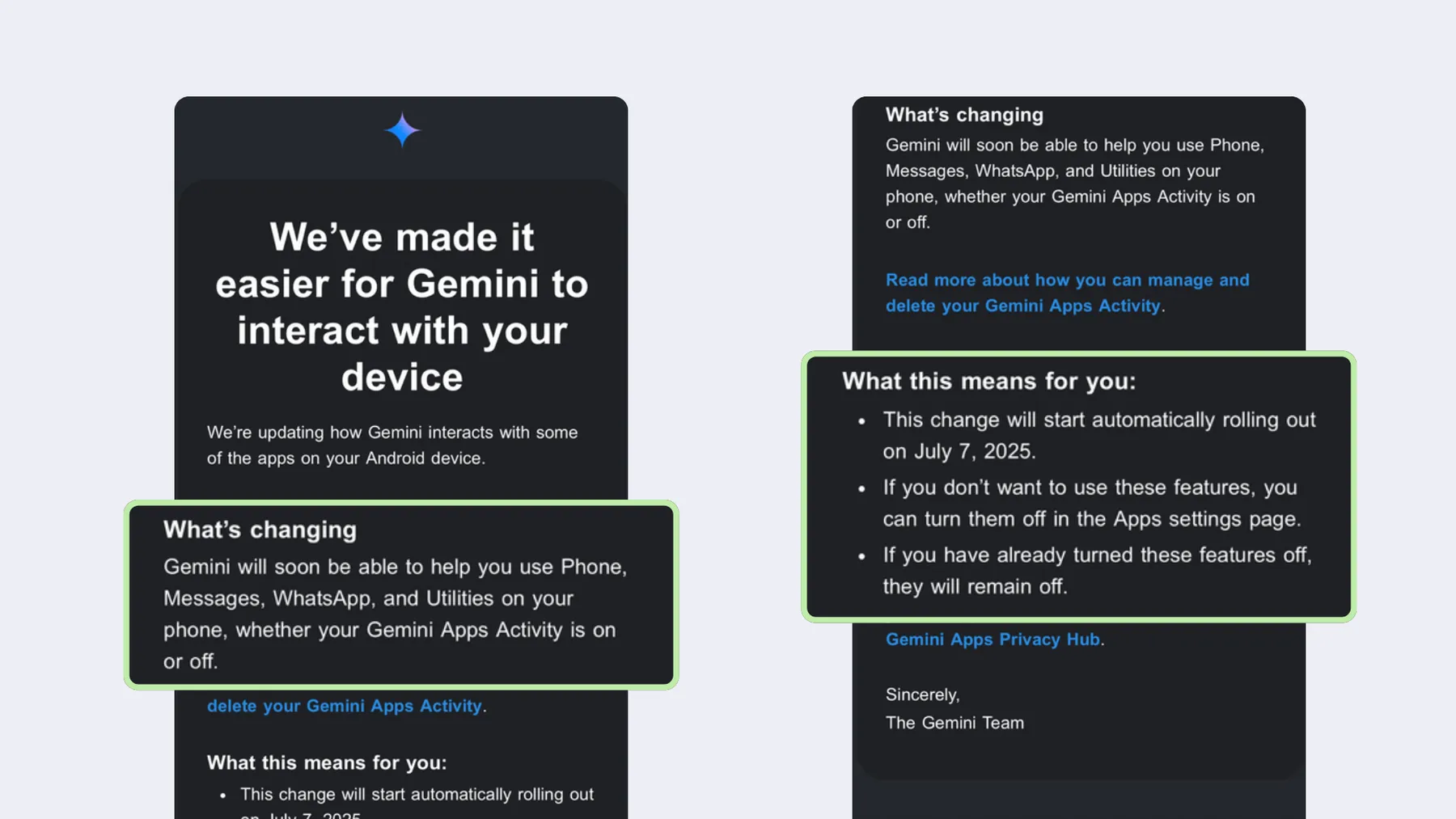
Google decided that its AI would have access to its users’ apps - even if they had previously turned tracking for Gemini Apps Activity off. So regardless of whether you told Google’s Gemini not to track you in the past, its AI tool might be able to run tasks like send WhatsApp messages, set timers, and even make calls on your Android device. Worryingly, Google’s AI invasion does not stop there. Now, Google has turned on settings like smart features, without your consent, and Gemini can scan your Gmail emails, Photos, Drive, and other apps.
— Tuta
Perhaps most worrisome is Google’s aggressive integration of Gemini, which seemingly has access not only to Google’s core suite of apps, but third-party apps as well. Any time you say “Hey Google”, it has access to your screen, which can then be sent to Google’s servers.
iOS #
While iOS seems like it would be the obvious alternative, Apple has its own set of privacy issues:
- Sent confidential Siri recordings to contractors
- Settled for $95 million over allegations of Siri eavesdropping without permission 1
- Tracked users even when privacy settings said they weren’t
- Fined $162 Million Over App Tracking Transparency
Apple Intelligence #
Similar to Gemini, Apple Intelligence can scan all on-screen content and installed applications and send this information upstream to ChatGPT’s servers:
Client-Side Scanning #
Apple Intelligence and Gemini are not yet deployed as explicit client-side scanning (CSS) systems, but both can analyze on‑screen content and send it to remote servers, steadily normalizing the kind of mechanisms that moves us closer to a future where CSS may become a reality—an existential threat to E2EE as we know it.
When a device runs an AI assistant capable of analyzing or scanning messages, files, or screen content before encryption, the confidentiality of a message you send to a trusted contact through an E2EE service can no longer be assumed. This underscores the necessity of collective action to avoid having the risks of CSS become reality.
Dumb Phones #
I’ll admit, from a tech minimalism perpsective, dumb phones are very alluring. They serve only one purpose and stay out of your way. No frills, no distractions. Unfortunately these just aren’t compatible with my threat model. Most can only use SMS for messaging and calls. Those that can install other apps are generally running fairly insecure custom OSes that don’t get a lot of attention.
For those that want a minimalist phone experience, while not having to heavily sacrifice on security and privacy, I’d recommend a minimalist configuration of GrapheneOS.
Linux Phones #
Here “Linux phones" is referring specifically to devices that run a conventional desktop Linux userland (postmarketOS, Ubuntu Touch, PureOS etc.) or similar systems with interfaces like Phosh, Plasma Mobile, or Lomiri directly on the device. It does not include OSes that use the Linux kernel such as Android or similar OSes.
I’ve never personally used a Linux phone, so I can’t give any anecdotes. However, they have a reputation for being fairly rough, both in terms of security and usability. This was David Hamner’s experience with PostmarketOS:
As it currently stands, a fair bit of Linux phones (especially older ones) are primarily marketed to a niche enthusiast and developer audience, not as a consumer-oriented daily driver.
However, newer models seem to be faring much better in the usability department:
As of now, I don’t find any Linux phone options compelling; they don’t offer any real advantages over hardened aftermarket OSes like GrapheneOS, which offers better usability, security, and privacy.
That said, I’m excited to see how this market evolves, especially since Google manages the Android Open Source Project (AOSP) and has been hostile to downstream projects recently. While the situation has stabilized, I think it’s in everyone’s interest to have truly independent competitor.
GrapheneOS #
GrapheneOS (GOS), is a fully degoogled operating system based on AOSP with extensive security features.
Installation #
Ironically, only Google’s Pixels satisfy GrapheneOS’s hardware requirements. In order to be a viable installation candidate the phone must be carrier unlocked. I got the Pixel 8a, but I’d suggest getting a Pixel 9 or above for the improved finger print scanner. Any Pixel after the 8th generation will have 7 years of support.
After that you can use the official web installer. It’s fairly quick, simple, and intuitive process.
Navigation #
By default, GOS uses Pixel’s gesture navigation. As someone accustomed to the 3-button navigation default on my previous Android phones, it was a bit difficult to get used to. Within a few weeks, however, I had become accustomed to it and even preferred it. Navigation can be changed to 3-button mode via Settings > System > Gestures > Navigation mode > 3-button navigation.
App Stores #
GrapheneOS App Store #
The stock app store that ships with GrapheneOS. Its only purpose is to manage the default AOSP applications and a few curated applications:
Google Play Store #
GrapheneOS has a compatibility layer providing the option to install and use the official releases of Google Play in the standard app sandbox. Google Play receives absolutely no special access or privileges on GrapheneOS as opposed to bypassing the app sandbox and receiving a massive amount of highly privileged access. Instead, the compatibility layer teaches it how to work within the full app sandbox. It also isn’t used as a backend for the OS services as it would be elsewhere since GrapheneOS doesn’t use Google Play even when it’s installed.
— GrapheneOS
The sandboxed Google Play (Play Store and Play Services) can be installed from the GrapheneOS App Store. The sandboxing has certain limitations, especially for features requiring privileged access. These limitations are actively being addressed, but I haven’t encountered issues since I don’t use these features.
This is the recommended primary method for installing apps on GOS, but because I don’t have nor want a Google Account, I do not use it.
Accrescent #
Accrescent is a private and secure Android app store built with modern features in mind. It aims to provide a developer-friendly platform and pleasant user experience while enforcing modern security and privacy practices and offering robust validity guarantees for installed apps.
— Accrescent
Accrescent creates a curated ecosystem of apps prioritizing security and privacy. While FOSS itself, it accepts both open-source and proprietary apps—currently without filtering options. Third-party repositories are not supported. Its ~20-app selection is small, but steadily growing.
Obtainium #
Obtainium allows you to install and update apps directly from their release pages, and receive notifications when new releases are made available. The app supports over a dozen source websites, including GitHub, GitLab, and F-Droid. Each source can be configured with various filters and settings to account for different release schemes, edge cases, and user preferences. For everything else, a generic “HTML” source can be customized to find and extract APK info. It also provides a way to import/export data and share app configurations with other users.
— Obtainium
Obtainium’s main goal is to allow users to install applications directly from the source without any intermediary.
After more than a few dozen installed apps, Github will start rate limiting queries and downloads. Once you reach this limit you will have to add a personal Github token, to Obtainium.
Yes, in theory every API request you make with your token can be associated with any identifying info in your GitHub account (like your email). That said, the GitHub API has lots of use cases so it’s not like they would know that “these are the mobile apps
@fbdbupdates through Obtainium” - it would be more like “@fbdbrequests info about these repos X times a day for some reason.” I also don’t think GitHub accounts need phone numbers or anything like that, so you could just use a separate account with a pseudonymous email (not that that would guarantee anything).
– ImranR98
If you’re concerned about this, it’s best to keep the number of applications as low as possible. I’m not sure how many “a few dozen” is, but you should have plenty of breathing room. I haven’t needed a personal token yet. I have ~20 apps in Obtainium.
F-droid #
F-Droid is an installable catalogue of FOSS (Free and Open Source Software) applications for the Android platform. The client makes it easy to browse, install, and keep track of updates on your device.
— F-Droid
F-Droid’s primary goal is creating an ecosystem for FOSS apps. Its official client supports numerous third-party repositories, making it highly flexible.
I used to prefer alternative clients like Neo Store and Droid-ify for their more modern UI. However, after F-Droid’s recent update adopting Material Design 3, I’ve switched back to it.
That said, F-Droid has historically struggled to keep up with modern security standards. It has improved in recent years, though several issues remain. Despite these concerns, F-Droid remains an excellent tool for discovering, tracking, and managing FOSS apps.
Aurora #
Aurora isn’t officially suggested by the project for more than just the security reason. There are other reasons, including the fact that Aurora doesn’t support Play Asset Delivery or Play Feature Delivery and their app has (in the past, not sure if this is fixed now) installed the wrong versions of apps.
— GrapheneOS Forum
Aurora is a frontend for the Google Play Store that allows you to install apps using shared anonymous accounts. Although I used them early on to get Google Play Store apps without a Google Account, I do not suggest using them.
Add to Home Screen #
While not an app store per se, it’s another way to access functionality otherwise unavailable. GOS does not have support for WebAPKs, but you can add website shortcuts as home screen widgets.
- Open Vanadium
- Visit the desired site
- Tap:
More Options Menu (⋮) > Add to Home screen - If it prompts for an install tap
Install - A screen will pop up that shows what the widget looks like and two options underneath
CancelandAdd to home screen - Press and hold the widget and drag it to the home screen or tap
Add to home screen
Add to home screen will not show up until after the next reboot. Dragg and drop the widget instead to avoid this issue.
This works great for email providers, chat applications, banking apps, health portals, and more. Though not as robust as standalone APKs, they’ve been an excellent solution for me.
Comparison #
| Store | Account Required | Automated Updates | Signed | Verified | Repository | Recommended by GOS Team |
|---|---|---|---|---|---|---|
| GrapheneOS App Store | No | Yes | Developer Signed | Yes | GOS repo | Yes |
| Google Play Store | Yes | Yes | Developer Signed | Yes | Google Play | Yes |
| Accrescent | No | Yes | Developer Signed | Yes | Accrescent Repo | Yes |
| Obtainium | No 2 | Yes | Developer Signed | Manual | Source Sites | No |
| F-Droid | No | Yes | Signed by F-Droid | Yes | F-droid + others | No |
| Aurora Store | No 3 | No | Developer Signed | No | Google Play | No |
Minimalist Configuration #
You can make a minimalist phone with GOS by using any number of minimalist launchers. µLauncher is available on Accrescent, but there are some other ones like Unlauncher as showcased by Side Of Burritos:
Profiles #
Single User #
The simplest approach is to only use the Owner user profile. Apps installed in the Owner profile are sandboxed the same way as everywhere else and don’t receive any special access.
…
To install sandboxed Google Play, open our App Store, select Google Play services and install it. This will install both Google Play services and Google Play Store which are interdependent.
— GrapheneOS
If you switched to GOS before deleting your Google account, this is a great low-friction approach. Enjoy all the same apps with the same installation method and use your phone as you normally would—just with the benefit of sandboxing.
Multi-User #
Android’s user profiles are isolated workspaces with their own instances of apps, app data and profile data (contacts, media store, home directory, etc.). Apps can’t see the apps in other user profiles and can only communicate with apps within the same user profile (with mutual consent with the other app). Each user profile has their own encryption keys based on their lock method.
— Graphene OS
GOS’s custom integration of Android’s multi-user feature adds several useful enhancements. Most notably the ability to securely deactivate user profiles and install apps from the Owner profile to secondary profiles. Together, these features enable a variety of custom configurations.
My setup #
I have 2 users profiles:
- Owner
- Main
Owner Profile #
The Owner profile is used solely for app installation; apps are not installed in any other profile. Other than the system defaults, the only apps present are:
- Accrescent
- Obtainium
- F-Droid
- AppVerifier
- Inter Profile Sharing
My preferred app store order is: Accrescent > Obtainium > F-Droid:
- Check Accrescent
- If it’s not on Accresscent, add it to Obtainium
- If it’s not on Obtainium or the signature can’t be verified, check F-Droid
- If it’s not on F-Droid, add the app’s website to the home screen of the desired profile
Whenever an application is installed on the Owner profile, I revoke network permissions and disable them.
Applications can be installed to other profiles by:
- Opening Users Settings through the Quick Settings panel or by navigating to
Settings > System > Users. - Selecting the desired profile and choosing
Install available apps. - Select the applications you’d like to forward to that profile.
I install the Inter Profile Sharing app in all profiles to allow simple and secure transfers of useful files, like contacts.
Main Profile #
This profile is my daily driver, where only FOSS apps are installed. I enable notification forwarding so I receive notifications no matter which profile I’m in.
GOS includes many default AOSP apps that, while secure, feature an outdated UI/UX last redesigned around a decade ago. The project plans to modernize or replace them all, but with no official timeline announced, I’ve replaced most of them. Worth keeping are the hardened PDF Viewer and Camera app—which while not on parity with Pixel Camera, remains the best FOSS option.
All the applications I use on Main:
| Application | Description |
|---|---|
| Aegis | Android app for 2-step verification tokens |
| Al-Azan | Prayer time and azan alerts |
| Auxio | Offline music player |
| Aves Libre | Gallery app |
| Fossify Calculator | Calculator |
| Cheogram | VOIP and XMPP app |
| Clock | Modernized AOSP Clock |
| Fossify Contacts | Contacts |
| Cromite | Privacy focused Chromium browser, fork of discontinued Bromite browser |
| DNSNet | Device wide DNS filtering |
| Easy Notes | Simple sleek private note taking |
| ExifEraser | Removes exif metadata from images |
| Fossify File Manager | File manager |
| FlorisBoard (beta) | Privacy respecting keyboard with multi-lang support |
| Immich | Client for self-hosted photo manager |
| Indic Keyboard | Extended support for more Indic language keyboards |
| Inter Profile Sharing | Forwards text and files across android profiles |
| IronFox | A privacy gecko based browser, fork of discontinued Mull browser |
| Jellyfin | Mobile client for self-hosted Jellyfin media instance |
| Jitsi Meet | Video conferencing application |
| KeepassDX | Password Manager |
| LocalSend | Share files to any device on the same network |
| Fossify Messages | SMS messenger |
| Markup Image Editor | Screenshot Editor |
| Mullvad VPN | Privacy VPN with no log policy |
| Nextcloud | Client to access self hosted cloud, similar to Google Drive |
| Nextcloud Notes | Note taking app synced with Nextcloud |
| OpenNutriTracker | Open source private calorie tracker |
| Organic Maps | Privacy focused mapping application, can be used offline as well |
| OSS Documents | Document Scanner |
| OwnTracks | Live location sharing and tracking |
| Fossify Phone | Dialer |
| Proton Mail | Email client |
| Proton Calendar | Calendar |
| Quran App | Ad and tracker free Qur’an reader |
| Signal | Private E2EE messenger |
| SimplyTranslate | Front-end for Google Translate |
| SpamBlocker | Blocks spam calls and texts |
| Syncthing-Fork | Mobile client for remote file syncing |
| Tailscale | Mesh VPN based on wireguard |
| trale | Body weight tracker |
| Tubular | Privacy front end for YouTube and fork of NewPipe with Sponsorblock integrated |
| Breezy Weather | Comprehensive weather app |
Additional Security Settings #
Some additional security settings GOS offers that I utilize.
Security Preview Releases #
Our security preview releases provide early access to Android Security Bulletin patches prior to the official disclosure. Our current security preview releases provide the current revision of the November 2025 and December 2025 patches for the Android Open Source Project. We recommend enabling this.
The only difference between our regular releases and security preview releases are the future Android Security Bulletin patches being applied with any conflicts resolved. The downside of security preview releases is we cannot provide the sources for the patches until the official disclosure date.
— GrapheneOS
This feature is off-by-default but I enabled them via:
Settings > System > System update > Receive security preview releases
If closed-source patches bother you, you can keep it disabled.
Attestation #
The Auditor app uses hardware-based security features to validate the identity of a device, along with the authenticity and integrity of the operating system. It ensures the device is running a verified operating system with a locked bootloader and that no tampering has occurred.
— Attestation.app
I use the remote service, but the process can be done locally using another phone running Android 13 or later.
Automatic Reboot #
Rebooting the device terminates all temporary states, processes, or activities that could be exploited and requires authentication like PIN, password, or biometric verification to unlock, thereby re-engaging all security mechanisms.
— BleepingComputer
The feature can only be enabled in the Owner profile settings:
Settings > Security & privacy > Exploit protection > Auto reboot
Once enabled, it applies to all profiles. I have set mine set to automatically reboot every 8 hours.
Backups #
GrapheneOS integrates Seedvault for encrypted backups, which can be enabled in Settings > System > Backup. They plan on replacing it with a different implementation sometime in the future.
Storage Scopes #
GrapheneOS provides the Storage Scopes feature as a fully compatible alternative to the standard Android storage permissions. Storage Scopes can be enabled only if the app doesn’t have any storage permission. Enabling Storage Scopes makes the app assume that it has all of storage permissions that were requested by it, despite not actually having any of them.
— GrapheneOS
This feature is an alternative to Android’s storage access system. It can be activated by selecting the Set up Storage Scopes option when an app requests access, or:
Settings > Security & privacy > Privacy controls > Permission manager- Select any storage-related permission type (Photos and videos, Music and audio, or Files)
- Select the application whose permission you want to edit
- Enable Storage Scopes with
Storage scopes > Enable Storage Scopes - Select which folders or files you want to whitelist.
Contact Scopes #
GrapheneOS provides the Contact Scopes feature as an alternative to granting the Contacts permission. Enabling Contact Scopes makes the app assume that it has the Contacts permission, despite not actually having it. By default, an app that has Contact Scopes enabled is not allowed any kind of contact access. — GrapheneOS
Similar to Storage Scopes, Contact Scopes can be enabled either by selecting Set up Contact Scopes when an app requests access, or:
Settings > Security & Privacy > Privacy controls > Permission Manager > Contacts- Select the desired application
Contact Scopes > Enable Contact Scopes- Manually select which contacts you want to whitelist.
Network Permissions #
GrapheneOS adds a Network permission toggle for disallowing both direct and indirect access to any of the available networks. The device-local network (
localhost) is also guarded by this permission, which is important for preventing apps from using it to communicate between profiles.
— GrapheneOS
This can be used to safely download apps and verify that they are not engaging in any unwarranted internet activity. It is especially useful for sandboxing applications like keyboards that do not need internet access to function, yet request it anyway.
It can be disabled in the application’s installation prompt by unchecking:
Allow Network permission
Or:
Settings > Security & privacy > Privacy controls > Permission manager > Network- Selecting the desired application
Don't allow
Sensor Permission #
[Disallows] access to all other sensors not covered by existing Android permissions (Camera, Microphone, Body Sensors, Activity Recognition) including an accelerometer, gyroscope, compass, barometer, thermometer and any other sensors present on a given device. When access is disabled, apps receive zeroed data when they check for sensor values and don’t receive events.
— GrahpeneOS
Microphone, camera, and location permissions can easily be toggled as tiles in the Quick Settings panel or via:
Settings > Security & privacy > Privacy controls.
All other sensor permissions can be revoked at:
Settings > Security & privacy > Privacy controls > Permission manager > Sensors.
Sensor sharing can be disabled by default via
Settings > Security & privacy > More security & privacy > Allow Sensors permission to apps by default
Limitations #
Banking #
Despite most banking apps working on GrapheneOS (including my bank’s) with sandboxed Google Play services—they remain a consistent challenge. Compatibility depends on the banking app developers, not GOS alone. Many rely on the deprecated SafetyNet Attestation or Play Integrity API, which restrict use to Google Android. Many of these apps have switched to hardware attestation, enabling full functionality on GOS.
NFC Payments #
Digital wallets like Google Pay and Samsung Pay also use Play Integrity, preventing NFC payments on GOS unless integrated into a banking app. Recently, PayPal and Curve Pay have gained NFC payment support on GrapheneOS, although Curve is currently limited to the UK and EU.
I usually carry my physical card with me and use it for tap payments, so the lack of NFC payment support hasn’t really affected me since I rarely used it to begin with.
Carrier functionality #
GrapheneOS aims to work with all carriers that are officially supported by Google on the stock operating system on Pixel devices. Wi-Fi Calling, VoLTE, Visual Voicemail, MMS, SMS, Calling and 5G (SA and NSA) all are supported, however some functionality may not be usable due to Google not supporting carriers on the stock OS officially or due to GrapheneOS not shipping proprietary apps required in order for this functionality to work on some carriers.
— GrapheneOS
Carrier functionality for me has been perfect across the board with the exception of Visual Voicemail, I simply do not receive SMS voicemail. One solution is to use sandboxed Google Dialer. However, since I now rely mainly on my VOIP number, most of my voicemails come through Cheogram, where they appear as voice messages.